
Fixing Validation Problems for Assays Marked as Invalid
Why This Happens
In versions of heliOS before 2026.1, if a method parameter or its default value fell outside the defined constraints, the system would automatically adjust it to the nearest valid value without notification. This silent correction could lead to unexpected or inconsistent results during assay execution.
From heliOS version 2026.1, we have extended method parameter validation to prevent such issues. This ensures that all parameter values strictly adhere to their defined constraints before an assay can proceed.
After this change, new validation issues may become visible when previously saved data is now considered invalid. In these cases, the system will mark an Assay as invalid and prevent the Assay Workflow from being started by hiding the Run Assay Workflow button.
Good news: None of your data is lost. You just need to make a few small adjustments.
How to Fix
- In the assay list, right-click the invalid assay and choose Open.

- If the “Open latest version” button shows, click it to open the editable version of the method
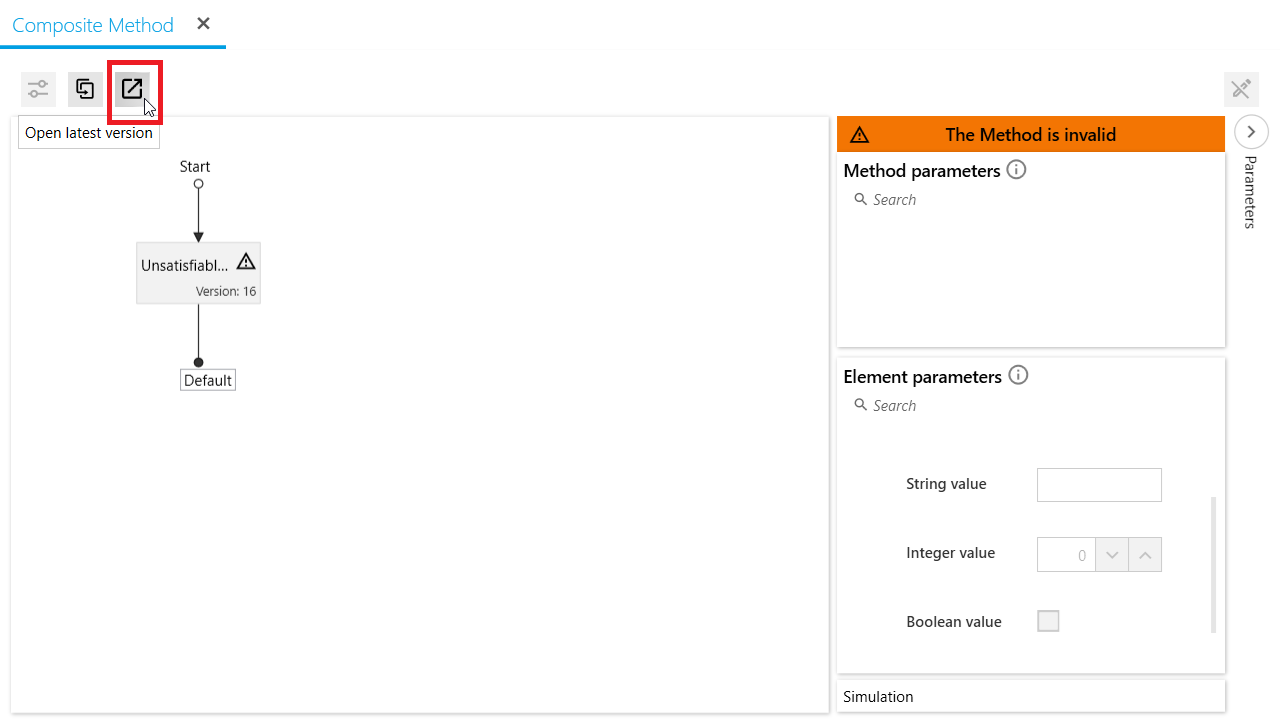
- Edit the opened method. See below for the most common problems and simple ways to fix them. These should solve most validation problems in heliOS. If you see a different error or need more help, please reach out to our support team.
Unsatisfiable Parameter
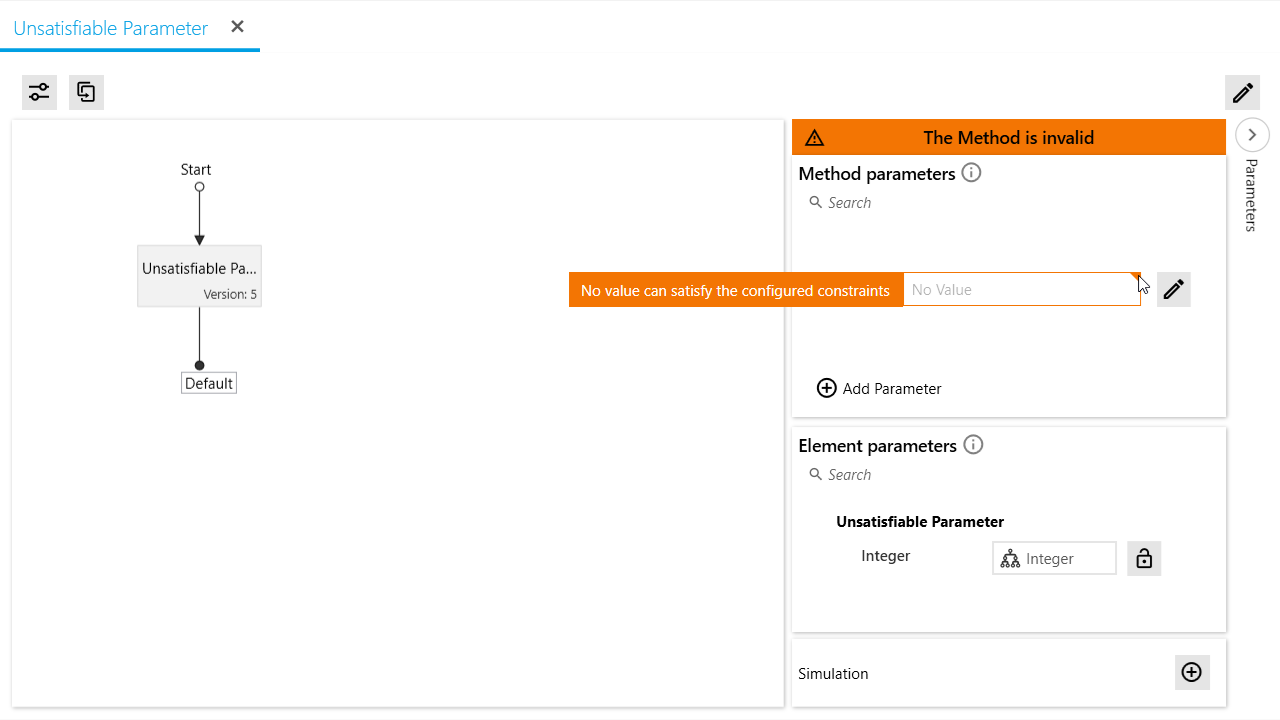
The example shown above demonstrates an unsatisfiable parameter scenario: the method parameter is set to only accept values between 1 and 5. It overrides the “Integer” parameter which only accepts values between 6 and 10. The 1-5 and 6-10 limitations do not overlap, therefore, no value can satisfy the method parameter.
To resolve: edit the constraints defined by the script, or edit the constraints via the method editor (by clicking the Edit button next to its parameter).
“Click to Fix”
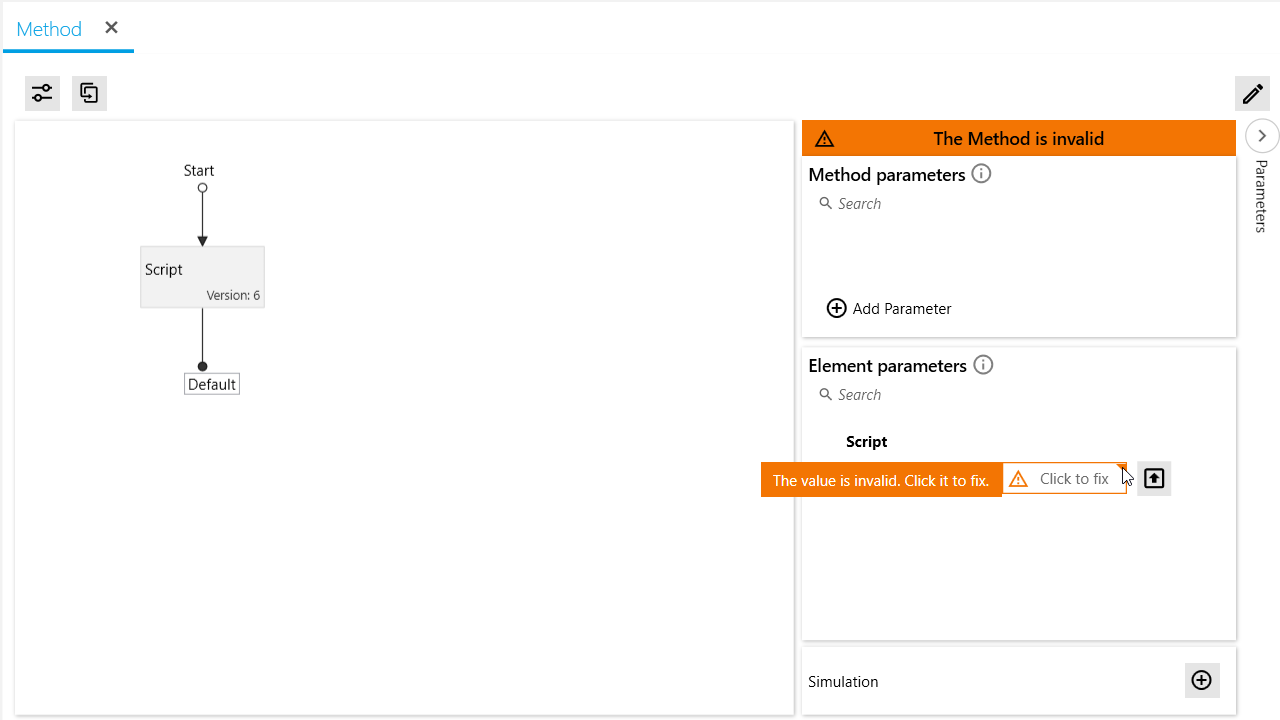
For some parameters with invalid values heliOS may be able to determine the intended value. In this case, heliOS will prompt you to “Click to fix”.
Simply click the “Click to fix” label, and heliOS will fix the parameter automatically.
Parameters with required value
Previously, it was possible to create a parameter with contradicting configuration. This was used to create parameters which proposed an empty default value, but at the same time required the user of the method to set a value.
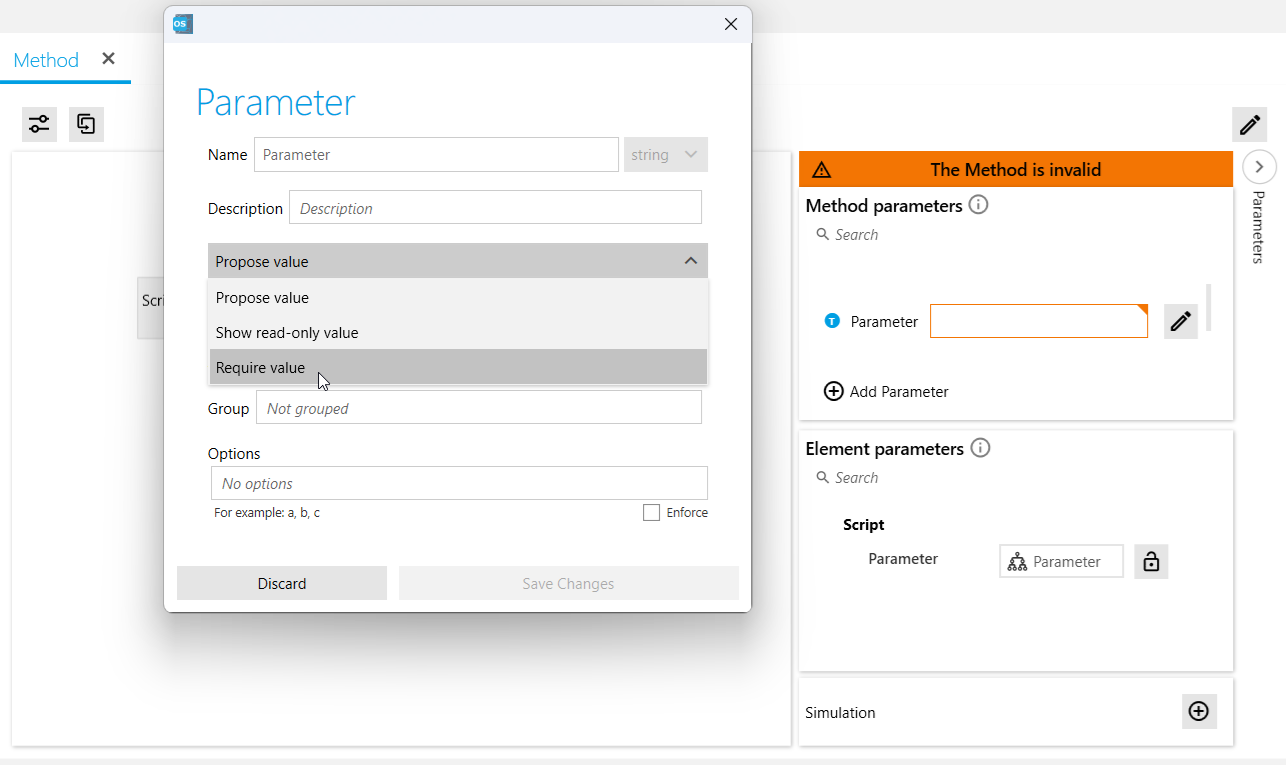
We closed this loophole and now enforce a consistent configuration for every parameter. If you want to not propose a default value and always require the user of your method to set the value, you can configure the parameter as Require value.
To resolve: Edit the method parameter, and select Require value from the dropdown, or define a default value.
Invalid Method Elements
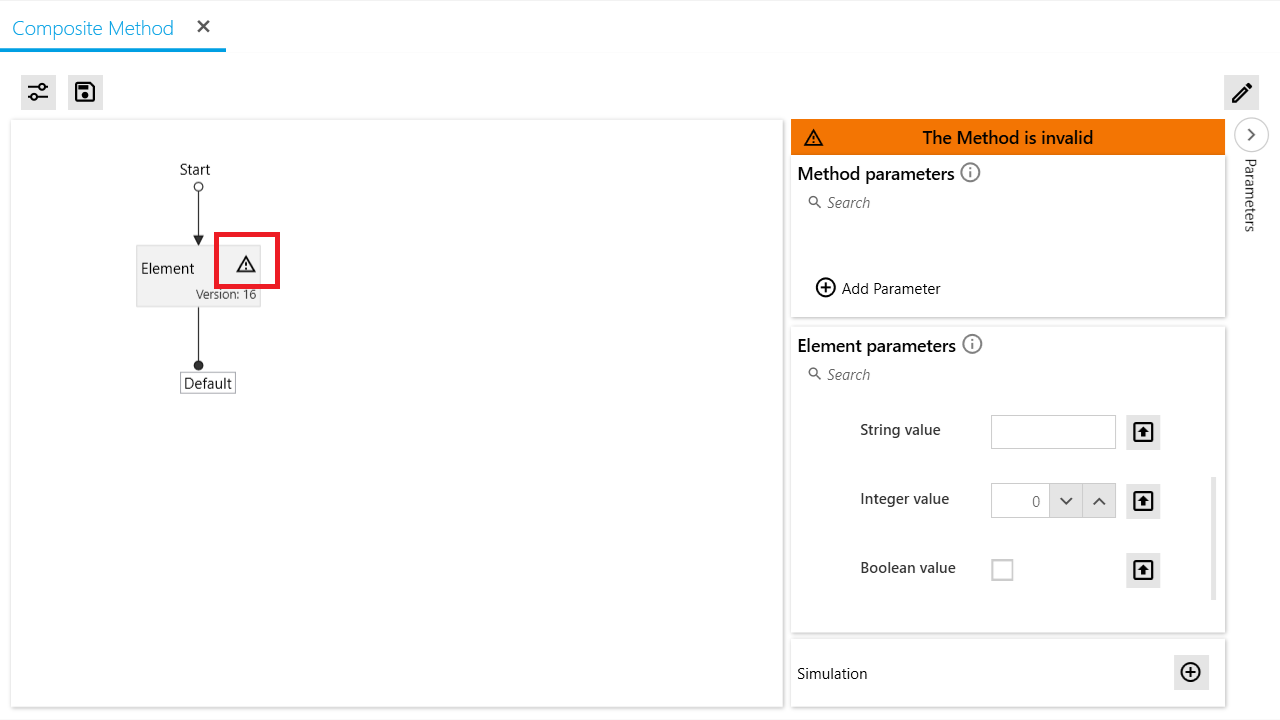
If an element within a Composite Method is invalid, the Composite Method itself will be invalid. The problematic element can be identified by the warning icon (see screenshot).
To resolve:
- Open the method element (via double click on the element).
- If the “Open latest version” button shows, click it to open the editable version of the method.
- Determine why the method is invalid and fix it according to the solutions proposed above.
- Once the method is valid, update the element in the Composite Method.
Questions?
Contact Us
Our support team is happy to help.